If you have ever scrolled through TikTok or Instagram Reels and wondered, “How did they make that? the answer is often Alight Motion. While many mobile editors offer basic cuts and filters, Alight Motion stands apart as a professional motion graphics app for your smartphone. At the heart of this powerhouse lies the Effect Browser, a treasure trove of tools that can transform flat footage into kinetic masterpieces.
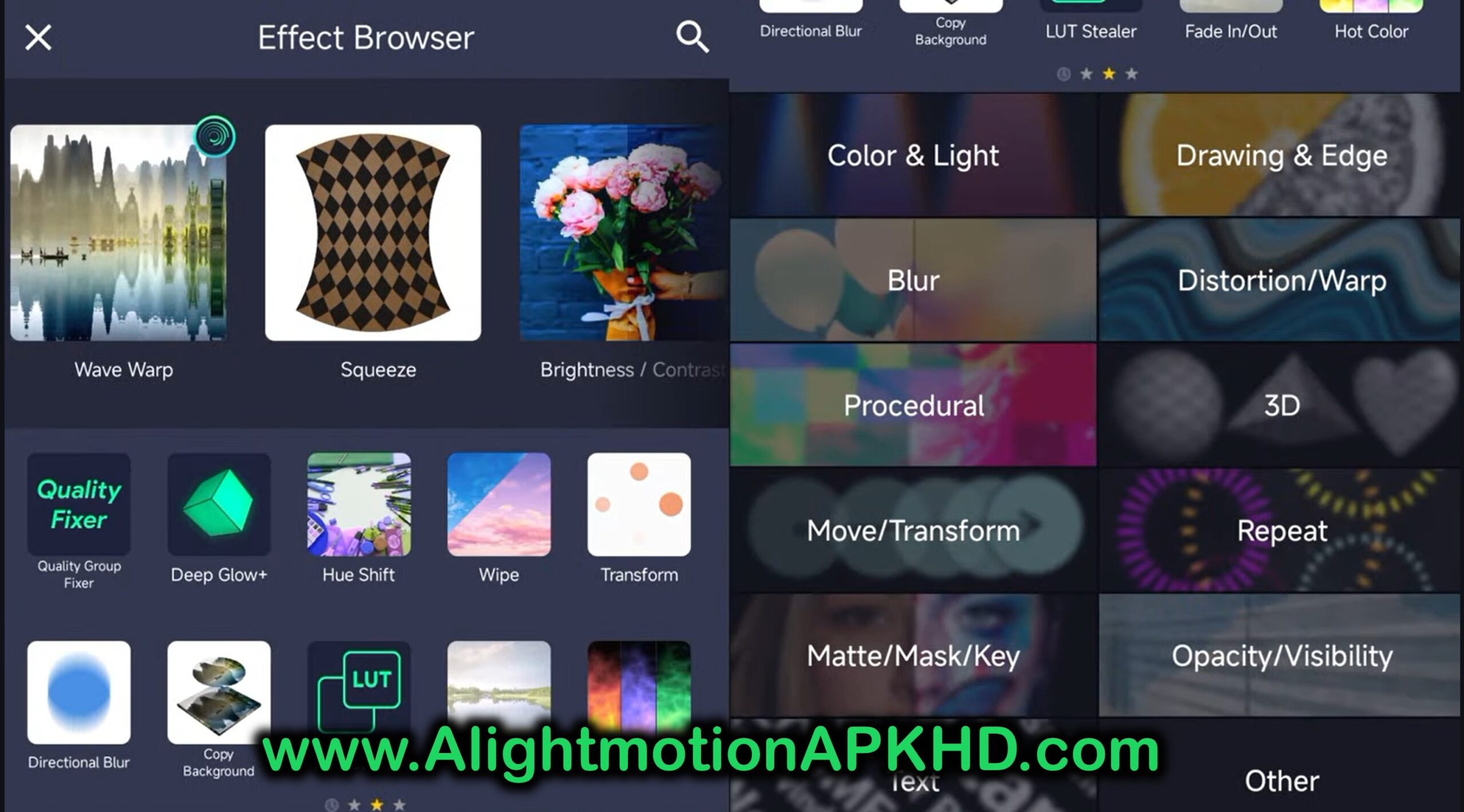
Whether you are a complete beginner or an intermediate editor looking to refine your workflow, mastering the Effect Browser is your gateway to pro-level edits. This guide will walk you through the interface, the essential categories, and the specific techniques used to create stunning visual effects.
What is the Effect Browser?
Think of the Effect Browser not just as a list of filters, but as a modular synthesizer for video. Unlike simple “one-click” presets found in other apps, Alight Motion allows you to stack, combine, and most importantly animate every single parameter of an effect.
To access it, simply tap on any layer (video, image, or shape) in your timeline, tap Effects, and then the big + Add Effect button. You will be greeted by a categorized menu containing over 100 building blocks.
Pro Tip: Don’t be overwhelmed by the quantity. You only need to master about 10-15 core effects to create 90% of the trending edits you see online.
Navigating the Key Categories
The browser is organized by function. Understanding these categories will speed up your workflow significantly.
Color & Light
This is where you set the mood. It’s not just about brightness and contrast; it’s about altering the atmosphere.
- Exposure/Gamma: The standard tool for correcting lighting.
- Gradient Overlay: Essential for creating those trendy “aura” backgrounds or coloring text.
- Spectral Map: A favorite for glitch edits, mapping the colors of your video to a rainbow spectrum.
Move & Transform
While you can move layers manually, these effects automate movement.
- Oscillate: Makes an object swing back and forth automatically perfect for floating text or icons.
- Auto-Shake: Instantly adds a handheld camera feel or a violent “rumble” during beat drops.
- Swing: Adds a pendulum-like motion, often used in typography edits.
Distortion / Warp
This category creates the “liquid” or “trippy” visuals Alight Motion is famous for.
- Tiles: The most important effect. It mirrors the edges of your video so that when you zoom or shake the screen, you don’t see black bars. Always turn on “Mirror” in the settings.
- Fractal Warp: Creates complex, waving distortions (like heat haze or water ripples).
- Circular Ripple: Great for transition impacts.
Blur
- Motion Blur: The secret to smooth animation. It adds realistic streaking to moving objects.
- Gaussian Blur: Standard softening, used heavily for glowing backgrounds (when combined with lighter blending modes).
The Secret Sauce: Keyframes & Graphs
You cannot talk about the Effect Browser without talking about Keyframes. This is what separates “filters” from “motion graphics.”

Every setting in the Effect Browser has a small Diamond Icon next to it. This is the Keyframe button.
How it Works:
- Start Position: Move your playhead to the start of the clip. Tap the keyframe diamond. Set the effect strength to 0.
- End Position: Move the playhead forward. Change the effect strength to 100.
- Result: The app automatically animates the change between those two points.
The Graph Editor
If your animation feels robotic, it’s because it is “Linear” (moving at a constant speed). To make it “Stunning,” you need Easing.
- Tap the Graph Icon (usually below the timeline/effect panel).
- Ease In: The animation starts slow and speeds up.
- Ease Out: The animation starts fast and slows down (great for entering text).
- Elastic: The animation bounces past the target and snaps back.
Step-by-Step: Creating a “Trending” Glow Effect
Let’s put this into practice. A common question is: “How do I make my object glow and pulse to the music?” Here is the recipe using the Effect Browser.
Step 1: Prepare the Layer
Import your shape or transparent PNG logo.
Step 2: Add “Electric Edges” (or Glow)
Go to Effects > Drawing > Electric Edges.
- Distance: Increase this to make the glow spread further.
- Detail: Lower this if you want a smooth glow, increase it for a lightning/energy look.
Step 3: Animate the Pulse
We want the glow to get brighter on the beat.
- Open the Color setting inside the effect.
- Add a Keyframe at the start of the beat and set the Alpha (opacity) to 100%.
- Add a Keyframe a few frames later and lower the Alpha to 50%.
- Copy and paste these keyframes for every beat in the song.
Step 4: Add “Oscillate”
Go to Effects > Move/Transform > Oscillate.
- Angle: Set to 90 degrees (vertical movement).
- Frequency: Set to 0.50 Hz (slow float).
- Magnitude: Set to 10.
- Result: Your glowing object now gently floats up and down while pulsating.
Advanced Techniques: Stacking & Masking
Once you are comfortable with single effects, the real magic happens when you Stack them.
The “Ghost” Effect
This is a popular effect for music videos where a “soul” seems to leave the body.
- Duplicate your video layer.
- On the top layer, go to Effects > Color & Light > Saturation and lower it to -100 (Black & White).
- Add Effects > Opacity > Blink or manually keyframe the opacity to fade out.
- Add Effects > Move/Transform > Zoom. Keyframe the zoom to increase over time.
- Result: A black and white ghost zooms out of your body and fades away.
Grouping and Null Objects
If you apply too many effects to one layer, the app might lag. A better way is to Group layers.
- Select multiple layers.
- Tap the Group icon (top bar).
- Apply effects to the Group instead of individual layers. This is essential for applying a uniform “Shake” or “Color Grade” to an entire scene.
Performance & Exporting
Alight Motion is powerful, but it can be heavy on resources. If your playback is lagging while using the Effect Browser:
- Lower Preview Quality: Go to settings and reduce the preview resolution. This won’t affect the final export.
- Hide Heavy Effects: There is a small “Eye” icon next to each effect in the list. Turn off heavy effects like “Motion Blur” or “Gaussian Blur” while you are editing, and turn them back on right before exporting.
Best Export Settings for Social Media
- Format: Video (H.264)
- Resolution: 1080p (4k is often unnecessary for TikTok/Instagram and causes compression)
- Frame Rate: 60 FPS (Crucial for smooth motion graphics)
- Bitrate: 15-20 Mbps
Conclusion: Experimentation is Key
The Alight Motion Effect Browser is a sandbox. The “stunning” edits you admire are rarely the result of a single effect; they are a combination of a simple blur, a slight color shift, and a well-timed shake.
Next Step: Open Alight Motion right now, import a simple text layer, and try to combine the Tiles, Oscillate, and Motion Blur effects. See how they interact.